#5. Object Settings (Advance Tab)
The Object Settings panel in iSyncSF gives you per-object control over how records are synced. Configure target object mapping, field-level transformations, picklist value translation, data masking rules, and update-vs-insert behavior — all in one place.
Purpose: Object Settings provide granular, per-object sync configuration. While template lines define WHICH objects and records to sync, Object Settings define HOW each object should be synced - what's the target object name, how are fields mapped between source and target, what expressions transform data, how are picklist values translated, and what data should be masked. This is where the detailed mapping intelligence lives. Where It Fits: Object Settings are configured on individual
DataSyncObjectSetting__crecord pages (separate from the template page). They are Step 5 in the workflow - after defining template lines, users configure Object Settings for each object that needs custom mapping, field transformation, or masking. During execution, the sync engine reads these settings to know how to prepare each record before sending it to the target org.
#5.1 Overview
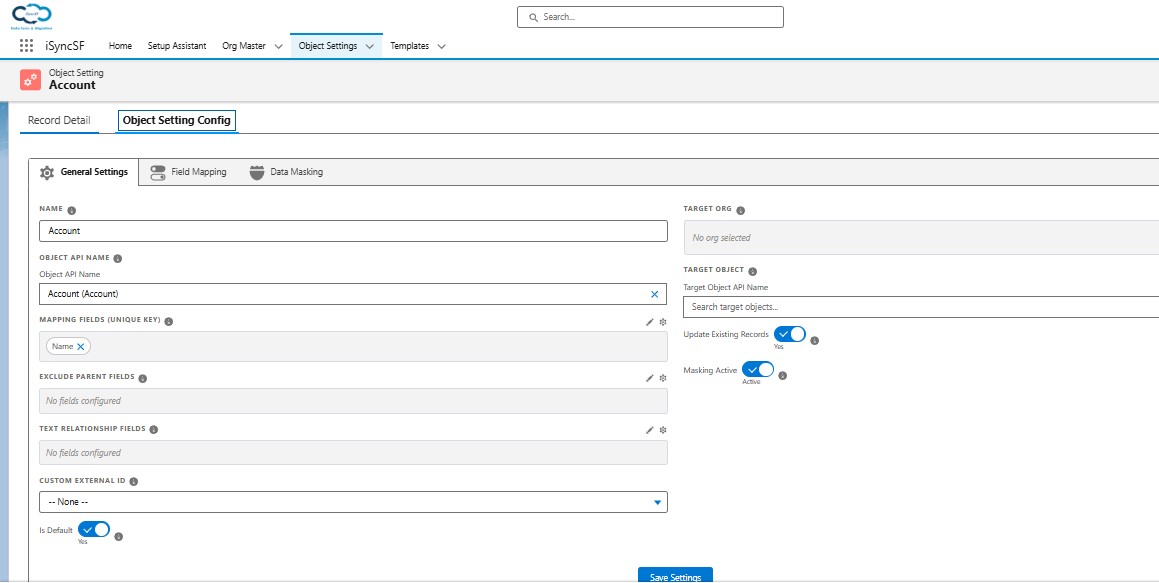
Object Settings provide per-object sync configuration. Each DataSyncObjectSetting record represents one object's detailed sync behavior. This is accessed from the Object Setting record page.
#5.2 General Settings Tab
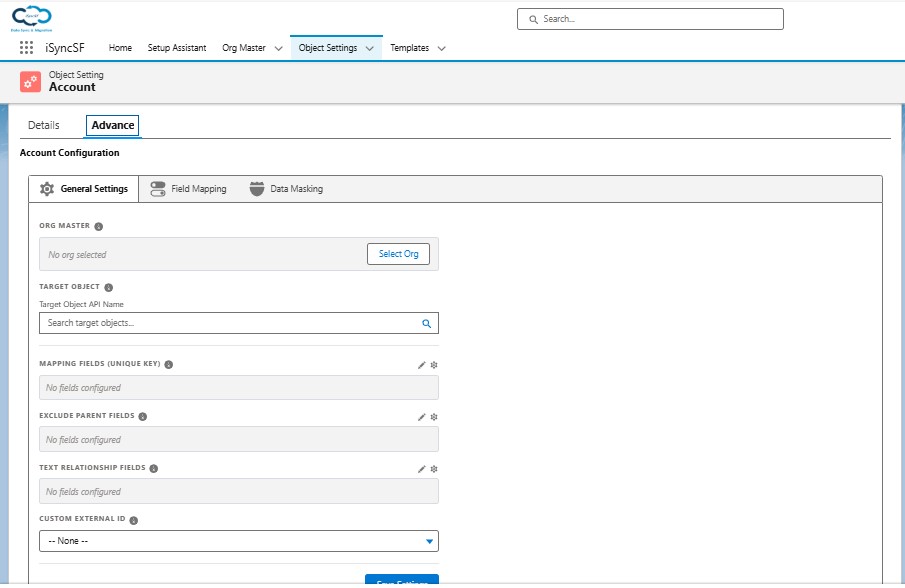
What Users Can Do:
- Select Target Org - Choose which connected org this object setting applies to
- Select Target Object - Choose the destination object (can be a different object name than the source)
- Configure Mapping Fields (Unique Key) - Define the unique key fields used to match source records to existing target records:
- Same-name mapping - e.g.,
Emailmeans the same field on both sides - Cross-name mapping - e.g.,
SourceField__c=TargetField__cmaps different field names - Composite keys - Multiple fields separated by commas for composite matching
- Update Existing Records - When enabled, the sync engine updates records in the target org that already exist (matched via mapping fields). When disabled, only new records are created
- Masking Active - When enabled, configured data masking rules are applied during sync. Fields with masking rules have their values replaced before being sent to the target org
- Exclude Parent Fields - Select parent lookup fields to exclude from relationship tracing
- Text Relationship Fields - Text or textarea fields that store record IDs as relationship references (e.g., a
Product_Scope__cfield holding comma-separated Salesforce IDs). The sync engine treats these as relationship fields and resolves the IDs to matching records in the target org - Custom External ID - Specify a custom field on the target to store the source record's Salesforce ID
- Save Settings - When changing the target org or object, the system warns if existing field mappings will be deleted
Org Change Behavior: When changing the target org, a confirmation dialog appears with three choices: - Cancel - Revert the change - Keep Settings - Change the org but preserve dependent field values - Rebuild - Clear the target object, mapping fields, exclude parent fields, and custom external ID
Source Object (API Name)
The first field in General Settings displays the current source object and allows you to change it. When you change the source object, a confirmation dialog appears with three choices:
- Cancel - Reverts the change and keeps the original source object
- Keep Settings - Keeps all existing field mappings and attempts to use them with the new object. Use this when the new object has a similar or identical field structure
- Rebuild - Clears all field configurations (mapping fields, exclude parent fields, text relationship fields, and custom external ID) and starts fresh for the new object. Choose Rebuild when the new object has a completely different field structure
Masking Active Toggle
Located in the General Settings tab (not the Masking tab). When toggled ON, data masking rules defined in the Data Masking Config tab will be applied during sync for this object. When OFF, masking is skipped for this object even if masking rules are fully configured. This provides a quick way to enable or disable masking without deleting your masking configuration.
Update Existing Records Toggle
Controls whether iSyncSF updates records that already exist in the target org (matched by the configured External ID or Mapping Fields). When this toggle is OFF, only new records are inserted — records that already exist on the target are skipped entirely, regardless of whether the source data has changed.
#5.3 Field Mapping Tab
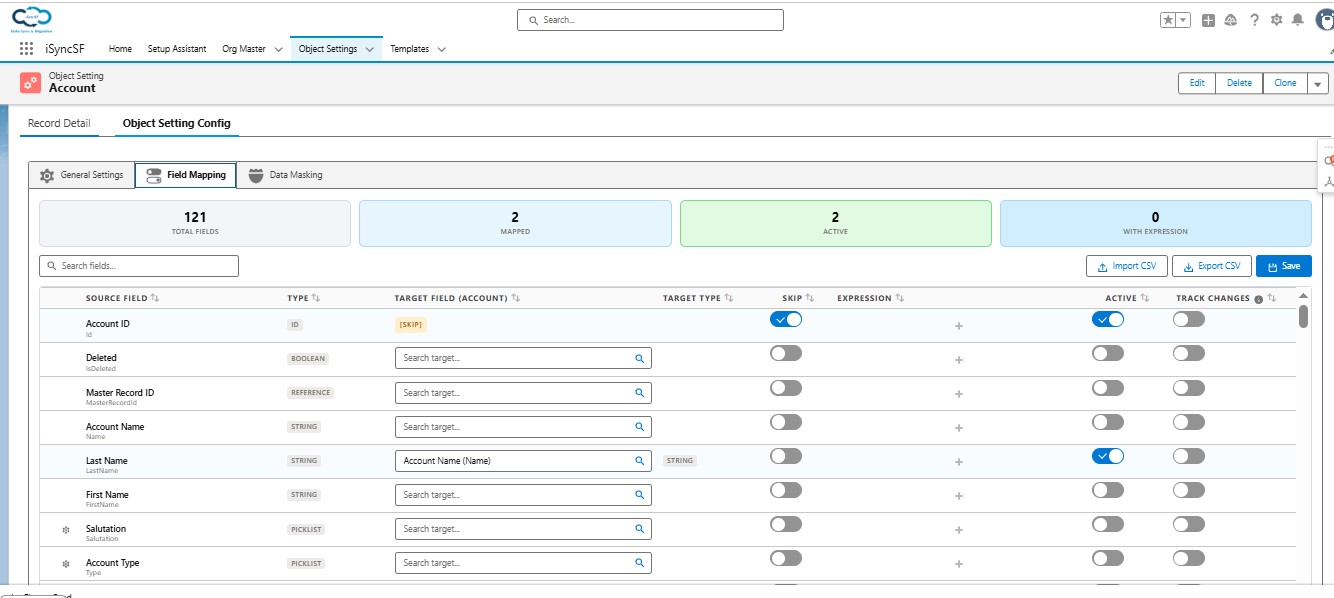
What Users Can Do:
- View All Source Fields - See a complete list of fields on the source object with their types
- Map Source to Target Fields - For each source field, select the corresponding target field using a searchable dropdown
- Set Field as Active/Inactive - Toggle whether a mapping is applied during sync
- Mark as Update Check Field - Fields marked for "update check" are compared between source and target; if all checked fields match, the record is skipped (strict update check)
- Add Expressions/Formulas - Open the Expression Builder to define computed field values (see Expression Builder)
- Map Picklist Values - For picklist/multi-picklist fields, open the Picklist Value Mapping panel to translate source values to target values (see Picklist Value Mapping)
- Search Fields - Filter the field list by keyword
- Import CSV - Upload a CSV file with field mappings (columns: SourceField, TargetField, IsActive, Expression)
- Export CSV - Download current mappings as a CSV file (all fields or only mapped/active)
- View Metrics - See counts of Total, Mapped, Active, and Expression-enabled fields
- Save All Mappings - Persist all changes with dirty-tracking (only changed mappings are sent to the server)
Picklist Mapping Badge
Field mapping rows display a blue badge when a Picklist Value Mapping is configured for that field. Click the badge or the picklist icon on any picklist or multi-picklist field row to open the Picklist Value Mapping editor for that specific mapping. The badge count indicates how many value translations have been defined.
Update Check Field
Marks a specific field as the delta comparison field for a mapping row. When Update Existing Records is enabled, iSyncSF compares this field's value between the source record and the matched target record. If the values match, the record is skipped and not re-updated. This is useful for incremental syncs where you only want to re-process records whose data has actually changed since the last sync — avoiding unnecessary updates on the target org.
Field Search
The field mapping tab includes a search input at the top of the field list. Type any part of a field name or label to filter the list. This is especially helpful when working with objects that have many fields and you need to quickly locate a specific field to configure its mapping or expression.
#5.4 Expression Builder
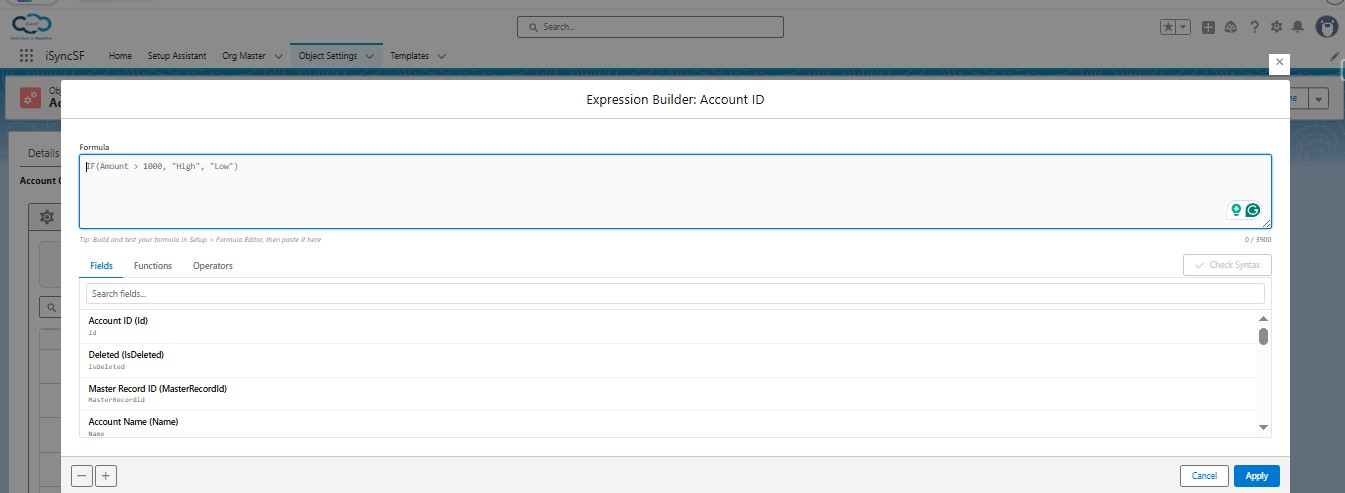
Users can define formulas/expressions that compute field values during sync.
What Users Can Do:
- Write Formulas - Enter formula text in a textarea (up to 3,900 characters)
- Insert Fields - Browse and insert source fields from a searchable list
- Insert Functions - Choose from 21 supported functions:
- IF, AND, OR, NOT, CASE
- ISBLANK, BLANKVALUE, CONTAINS, BEGINS
- TEXT, VALUE, LEN, LEFT, RIGHT, MID, SUBSTITUTE, TRIM
- UPPER, LOWER
- TODAY, NOW, ISPICKVAL
- Insert Operators - Choose from operators: =, <>, >, >=, <, <=, &, +, -, *, /, (), "", &&, ||
- Check Syntax - Validate the formula before applying it. The system checks syntax, field references, and returns errors if any
- Apply or Cancel - Apply the expression to the field mapping or discard changes
Expression Examples: - IF(Type = "Customer", "Active", "Inactive") - Conditional value - UPPER(LastName) & ", " & FirstName - String concatenation - IF(ISBLANK(Email), "no-email@example.com", Email) - Default value handling
#5.5 Picklist Value Mapping
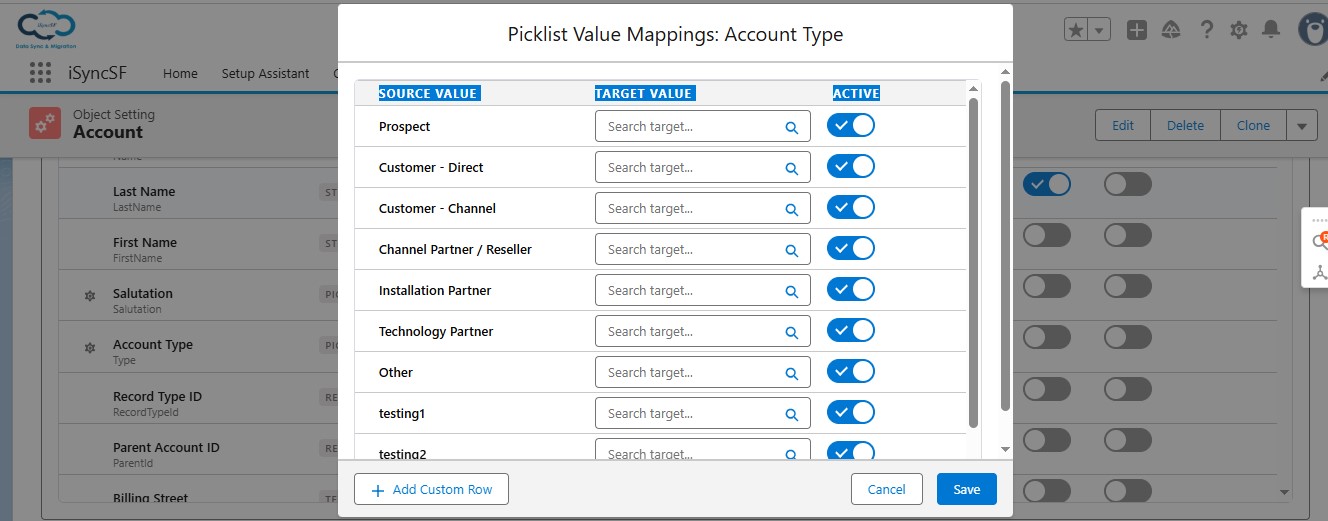
For picklist and multi-picklist fields, users can map source picklist values to different target values.
What Users Can Do:
- View All Source Values - See every picklist value defined on the source field
- Map to Target Values - For each source value, select or type a corresponding target value
- Custom Values - Type custom values not in the target picklist definition
- Toggle Active - Enable/disable individual value mappings
- Add Custom Rows - Add mappings for values not in the current picklist definition
- Delete Mappings - Remove unwanted value mappings
- Save Mappings - Persist the picklist value translation rules
#5.6 Data Masking Tab
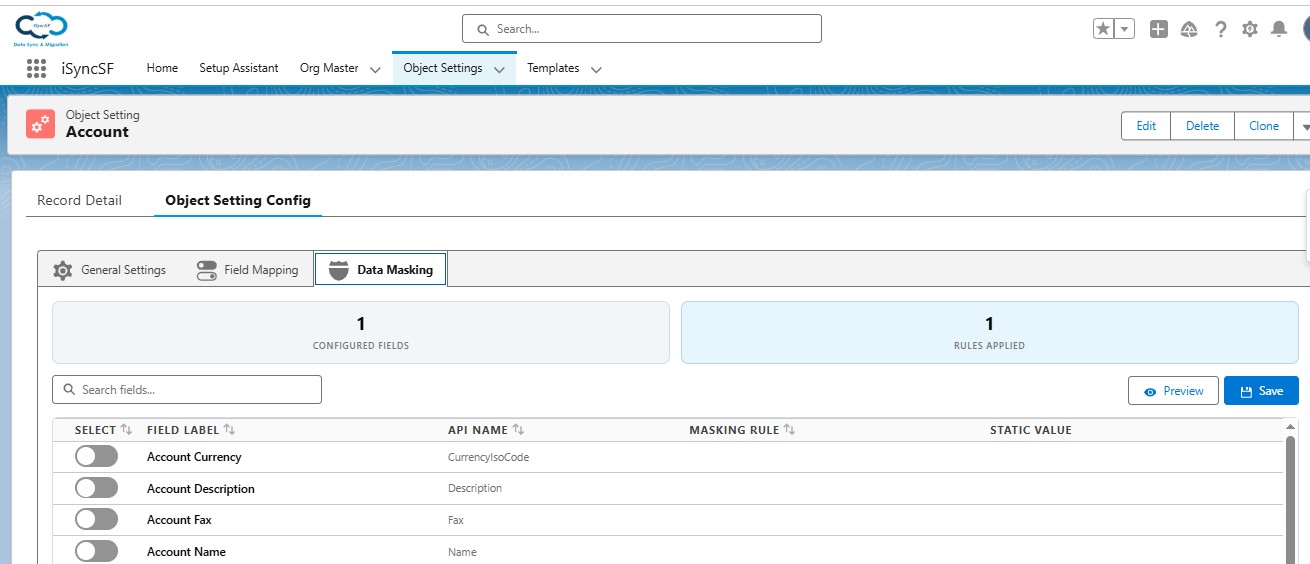
What Users Can Do:
- Enable/Disable Masking - Toggle masking for this object
- Select Fields to Mask - Choose which fields should have their values concealed
- Choose Masking Rules - For each selected field, pick a masking method:
- Random Text - Replace with random alphanumeric characters matching the field's max length
- Random Number - Replace with a random integer matching the field's digit count
- Random Double - Replace with a random decimal matching the field's precision
- Static Value - Replace with a specific fixed value you define
- Clear Value - Set the field to empty/blank
- Preview Masking - Generate sample masked values to see what the output will look like before applying to real data
- View Metrics - See counts of configured fields and applied rules
- Search Fields - Filter the field list by keyword
- Lazy Loading - Fields load 25 at a time with a "Load More" button for objects with many fields
- Save Configuration - Persist the masking rules