#7. Execute Tab
The Execute tab is where you run a Salesforce data sync in iSyncSF. Select the target org, configure migration order and batch settings, launch the job, and monitor real-time per-object progress. Export error reports, retry failed records, or roll back the entire run from this tab.
Purpose: The Execute tab is where data actually moves from source to target. It orchestrates the entire sync pipeline: selecting the target org, configuring migration order, running the scan (if not already done), sending data to the target org via REST API, and displaying real-time progress. It also provides post-execution actions like error viewing, retry, and rollback. Where It Fits: Execution is the core action of the entire application - everything else (setup, templates, object settings, org compare, automation control) leads up to this point. After configuration is complete and optionally validated via scan/preview and org compare, users come here to actually move data. The execution pipeline processes objects in migration order, matching records against the target, inserting new records, updating existing ones, and handling errors.
#7.1 Running a Sync
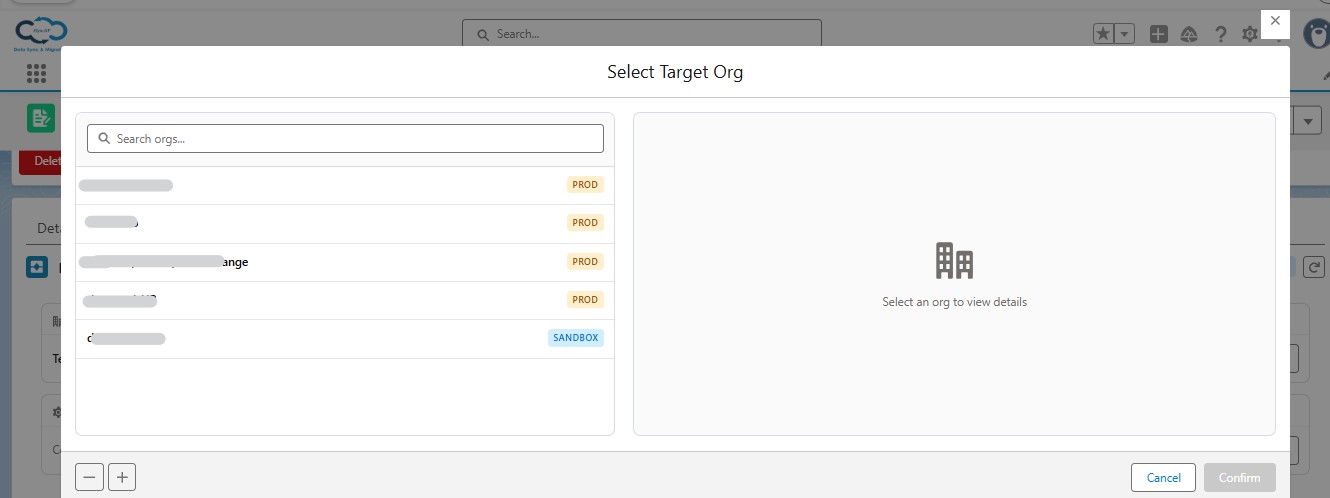
What Users Can Do:
- Select Destination Org - Choose the destination org via a modal selector before starting a sync
- Check Metadata Mismatch (conditional) - Pre-flight check that compares source and target metadata for the objects in scope; surfaces missing fields, disabled validation rules, or permission gaps before the sync begins
- Enable Disabled Metadata (conditional) - Activates any automation or metadata items that were found disabled in the check, so the sync does not fail on the target side
- Start Sync - Begin the data synchronization. The engine runs the scan phase (if not already scanned) and then transfers records to the target org
- Start ReSync - Re-run the sync, reprocessing records that failed or were skipped in the last execution. Useful for recovering from transient errors without re-scanning from scratch
Understanding Execution States
A sync job moves through the following states during execution. The current state is visible in the status display on the Execute tab:
- Not Started - The job has been created but processing has not yet begun. Template lines and org connections are being validated.
- Scan In Progress - The pre-scan phase is running, counting records and resolving parent-child relationships before any data is moved.
- Scanned - The pre-scan completed successfully. Record counts and migration order are ready. The job is ready to proceed to sync.
- Sync In Progress - Records are actively being processed and sent to the target org. The progress tracker shows per-object counts updating in real time.
- Synced - The sync finished successfully. All records were processed (though some may have individual errors visible in the Error Viewer).
- Rollback - A rollback has been requested for this job.
- Rollback Started - The rollback operation is in progress. Records are being removed or restored in the target org.
- Rollback Completed - The rollback finished. Inserted records were deleted and updated records were restored (if versioning was enabled).
- Aborted - The job was manually cancelled or auto-aborted. Records already committed to the target remain.
- Deleted - The job record has been marked for cleanup and is no longer active.
#7.2 Sync Settings (Migration Order)
.jpg)
iSyncSF automatically detects the correct migration order based on object relationships, so most users will never need to change this. However, in rare scenarios - such as circular relationships between objects - you may want to manually adjust the order. This is entirely optional and only recommended if you are confident a change is needed.
What Users Can Do:
- View Migration Order - See the automatically determined processing sequence for all objects in the sync
- Reorder Objects (Optional) - If needed, drag and drop or edit the migration order to override the default sequence. After saving a new order, the system runs a background process to recalculate dependencies - this typically takes a few seconds to a couple of minutes depending on the number of records, so allow it to complete before starting a sync
- Toggle Insert/Update - For each object, control how records are handled on the target:
- Insert new records (default: on) - Creates records on the target that don't already exist
- Update existing records (default: on) - Updates target records that already have a matching source record
- Don't Update Existing Records - Skips updates for records that already exist on the target. This is safe to use when you only want to create new records without modifying anything that's already there
- Don't Insert New Records - Prevents the system from creating any new records for that object on the target. Use this only if you are certain that all records for this object already exist on the target. Important: If a record is not found on the target and insertion is disabled, the system will not have a target record ID for it. Any child or dependent objects that reference this record may then fail to sync or could end up linked to incorrect data. Only select this option when you are confident it is appropriate for your use case
- Save Order - Apply migration order changes and trigger the reorder process
#7.3 Monitoring Sync Progress
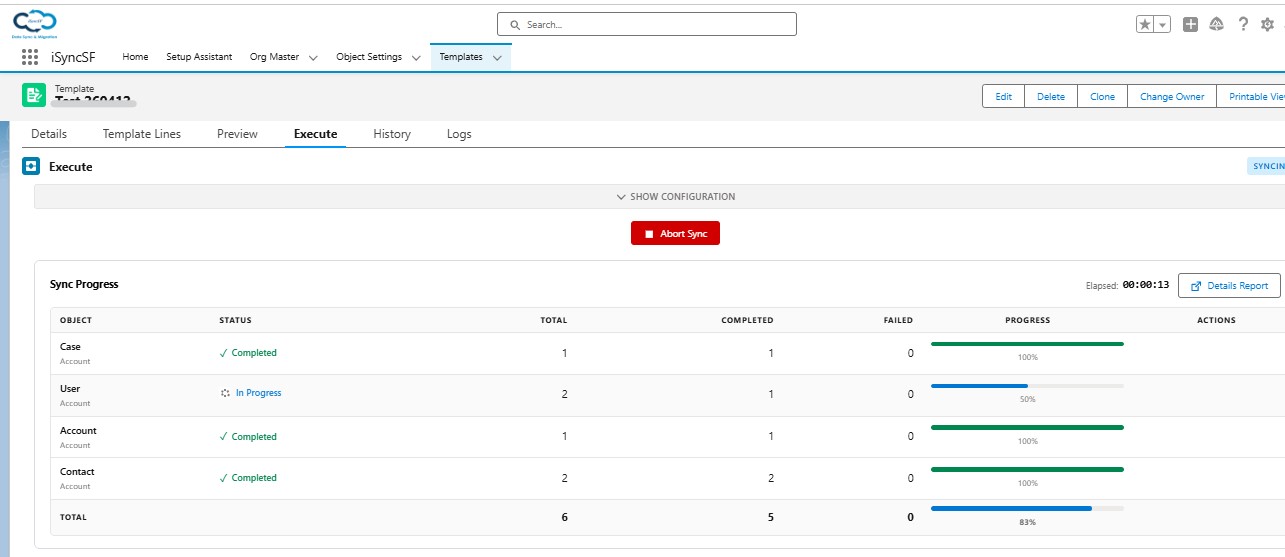
What Users Can Do:
- Real-Time Progress Tracking - Monitor the sync with live updates:
- Status indicators - Shows current state (Initializing, Executing, Completed, Aborted)
- Progress percentages - Per-object completion rates
- Record counts - Inserted, updated, existing (skipped), and error counts
- Elapsed time - Running timer
- Current object - Which object is currently being processed
- View Errors in Real Time - See errors as they occur during sync
- Abort Sync - Cancel the running sync job
#7.4 Post-Execution Summary
After a sync completes:
- View Summary - See totals for inserted, updated, existing, and error records
- View Error Details - Drill into per-object error summaries
- Export Errors - Download error details as a CSV file
- Retry Failed Records - Attempt to re-sync records that failed
- Rollback - Revert all inserted records from the target org (see Rollback)
#7.5 Error Viewer
What Users Can Do:
- Browse Errors by Object - See which objects had errors and how many
- View Individual Error Details - See the specific error message for each failed record
- Filter Errors - Filter by object type or error message
- Export to CSV - Download the full error report