#10. Application Logs
iSyncSF Application Logs provide real-time visibility into sync execution. Each log entry is tagged with a level (ERROR, DEBUG, FINEST) and a timestamp. Use the built-in viewer to filter, search, and monitor jobs as they run — and schedule automatic log cleanup to manage storage.
Purpose: Application logs provide real-time visibility into what the sync engine is doing during execution. They capture processing milestones, errors, warnings, and debug information that help users understand sync behavior and troubleshoot issues. Logs are template-specific and can be filtered by severity level. Where It Fits: Logs are viewable during and after execution via the Logs tab on the template page. They complement the progress tracker and error viewer by providing detailed, chronological event information. Users typically use logs when the progress tracker shows errors or unexpected behavior and they need more detail. Log cleanup is handled automatically by scheduled jobs and manually via the "Delete Application Logs" button.
#10.1 Viewing Logs
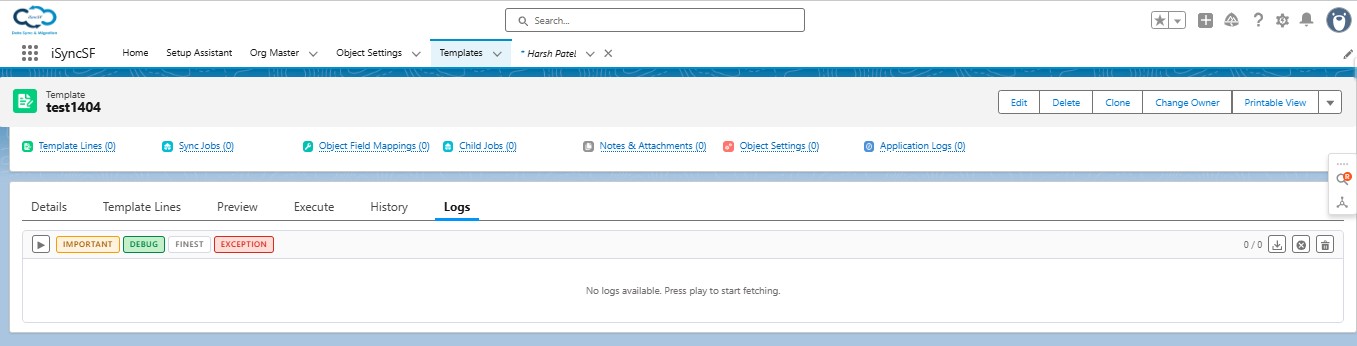
What Users Can Do:
- View Real-Time Logs - Logs update automatically every 5 seconds during sync execution
- Filter by Log Level:
- ERROR - Only error messages
- DEBUG - Standard debug information
- FINEST - Verbose detail for deep troubleshooting
- Search Logs - Filter log entries by keyword
- Cursor-Based Pagination - Navigate through large volumes of logs efficiently
#10.2 Cleaning Up Logs
What Users Can Do:
- Delete Application Logs - Click the "Delete Application Logs" button on a template record page to clear all logs for that template
- Automatic Cleanup - The system automatically clears old logs before starting a new sync
- Scheduled Cleanup - Background jobs automatically purge logs older than the configured retention period (default: 60 days)
#10.3 Status Notifications
- Toast Notifications - Real-time toast messages appear when sync status changes (e.g., scan completed, sync started, sync completed, errors detected)
- Cross-Tab Updates - Status changes are communicated across all open tabs using Lightning Message Service
#Log Level Badges
Each log entry displays a colored badge indicating its severity level:
- ERROR (red): A failure that prevented a record or batch from being processed. Always investigate these.
- DEBUG (green): Diagnostic information useful for understanding what the sync engine is doing at each step.
- FINEST (gray): Highly detailed trace-level messages. Only visible when LOGLEVEL is set to FINEST in System Properties.
#Filtering and Search
Log filtering is performed entirely on the client side for fast response. Use the level filter buttons to show or hide specific log levels. The search input matches against log message text, allowing you to quickly find entries related to a specific object or error message. Logs update in real time during an active sync — new entries appear automatically without manual refresh.
#Status Notifications
Toast notifications appear automatically during sync execution to inform you of key events. These include:
- Sync Started: Confirms the job has begun processing
- Sync Completed: The job finished successfully
- Sync Completed with Errors: The job finished but some records failed
- Sync Aborted: The job was cancelled by the user or auto-aborted
- Scan Completed: Preview/Scan finished with results ready
- Rollback Completed: Rollback of a previous sync finished
Notifications are scoped to the current template — you will not receive notifications for jobs running on other templates.
#Log Cleanup
Click the Delete Logs button in the toolbar to permanently remove all application log records for the current template. A confirmation dialog will appear before deletion proceeds. For automated cleanup, configure the scheduled Application Log Cleanup Job in the Setup Assistant — it runs on a configurable schedule and removes logs older than the retention period.