#12. Automation Control
iSyncSF Automation Control lets you disable triggers, validation rules, flows, and workflow rules in your target Salesforce org before running a data sync, then re-enable them afterward. This prevents automations from interfering with bulk data loads and causing sync failures.
Purpose: Automation Control manages the target org's automations (triggers, validation rules, flows, workflow rules) that could interfere with data sync. When records are inserted/updated in the target org, these automations fire and can cause errors (validation rules blocking inserts), unwanted side effects (triggers sending emails), or performance issues (flows running on every record). This feature lets users temporarily disable them before sync and re-enable them after. Where It Fits: Automation Control is used just before executing a sync and immediately after. The typical workflow is: Scan automations -> Disable selected automations -> Run sync -> Re-enable automations. It's particularly important when syncing into production orgs or orgs with complex automation. The feature is accessed from the template management page.
#12.1 Managing Target Org Automations
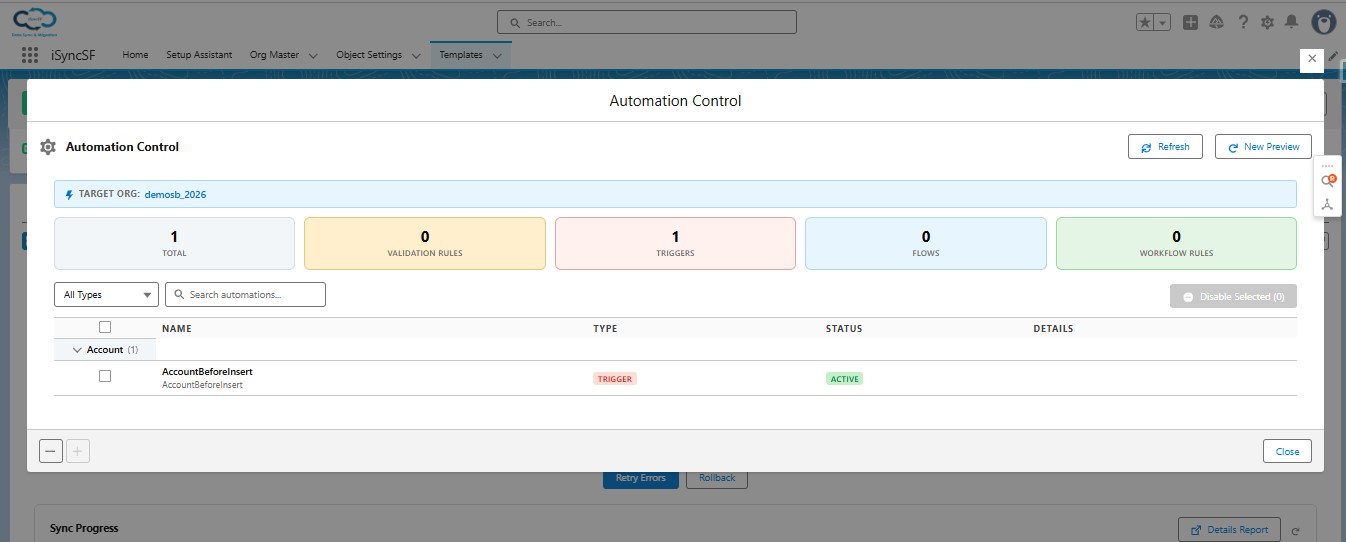
Before syncing data, users often need to temporarily disable automations (triggers, validation rules, flows, workflows) on the target org to prevent interference during data insertion.
What Users Can Do:
- Scan Automations - Discover all active automations on the target org for the template's objects:
- Validation Rules - Field validation rules
- Apex Triggers - Custom trigger code
- Workflow Rules - Classic workflow rules
- Record-Triggered Flows - Flow Builder automations
- View Scan Results - See a complete list of discovered automations with their current status (active/inactive)
- Disable Automations - Selectively or bulk disable automations before sync:
- Select specific automations to disable
- Or disable all at once
- Enable Automations - Re-enable automations after sync completes:
- Select specific automations to re-enable
- Or re-enable all previously disabled automations
- Monitor Toggle Progress - Track the progress of disable/enable operations
- View Action Results - See which automations were successfully toggled and which failed
Important Notes: - Trigger disabling/enabling uses an asynchronous deployment process and may take a few minutes to verify - The system automatically verifies trigger deployments through a background scheduler (up to 5 retries at 1-minute intervals) - Email notifications are sent when scan and toggle operations complete
#Supported Automation Types
iSyncSF Automation Control can scan, disable, and re-enable the following automation types in the target org:
- Apex Triggers: Custom Apex triggers on standard and custom objects
- Flows: Record-triggered flows, autolaunched flows, and scheduled flows
- Validation Rules: Field-level and cross-object validation rules
- Workflow Rules: Classic workflow rules with field updates, email alerts, and outbound messages
#Deploy Time Implications
Disabling and re-enabling automations in the target org is performed via the Salesforce Metadata API, which requires a deployment. Deployments typically take 30 seconds to several minutes depending on the number of components being changed and the target org's deployment queue. Plan for this when scheduling sync jobs — the disable step runs before the sync begins, and the re-enable step runs after the sync completes.
#Re-Enable Requirements
After a sync completes (or is aborted), you should re-enable the automations that were disabled. iSyncSF tracks which specific automations were disabled during the current session, so the re-enable action restores exactly what was changed — it does not enable automations that were already inactive before the sync. If a sync is interrupted unexpectedly, use the Automation Control panel to manually review and re-enable any automations that remain disabled.