#8. Sync History Tab
The Sync History tab provides a complete audit trail of all past iSyncSF sync executions. Review per-object insert and update counts, drill into error details, export error CSVs, and initiate a rollback — all from a single view.
Purpose: The History tab provides a complete audit trail of all past sync executions for a template. It allows users to review what happened in previous syncs, investigate errors, compare results across executions, and initiate rollbacks of past syncs. This is essential for troubleshooting, compliance, and operational visibility. Where It Fits: History is a post-execution tool. After a sync completes (or fails), users can come here at any time to review results. It also serves as the entry point for rolling back past syncs. Each execution is a separate history entry, so users can compare delta sync runs over time.
#8.1 Viewing Past Executions
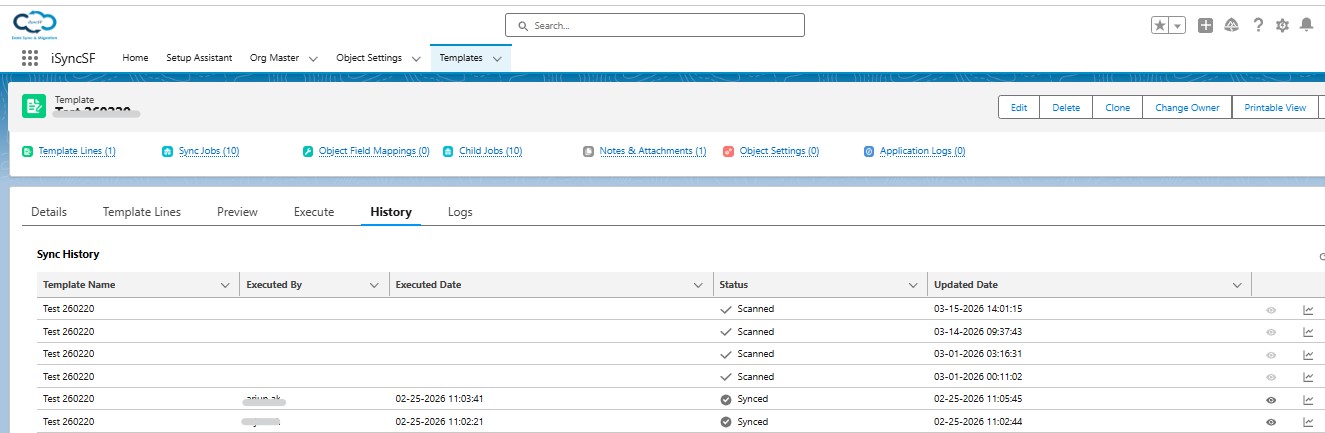
What Users Can Do:
- Browse Sync History - See a list of all past sync executions for the current template
- View Execution Details:
- Execution date and time
- Who executed the sync
- Status (Synced, Aborted, Rollback Completed, etc.)
- Total record counts (inserted, updated, errors, existing)
- Drill Into Results - Click on a past execution to see per-object breakdowns
- View Error Summaries - See error counts and messages for each object in a past sync
- Export Error Details - Download error data as CSV
- Initiate Rollback - Roll back a completed sync from the history view (only available if rollbackable records exist)
#Error Summary Drill-Down
Click a completed sync job to open the error detail modal. The error viewer groups failures by template line and object type, showing a count of failed records per object. Expand each group to see individual record errors with their error messages. Use the Export CSV button to download errors in the format errors_{objectName}_{timestamp}.csv for offline analysis.
#Understanding Status Icons
- Success (green checkmark): Synced — job completed with no errors
- Spinner: In Progress — job is currently executing
- Warning (amber triangle): Aborted — job was manually cancelled or auto-aborted
- Error (red circle): Error — job failed with an unrecoverable error
- Rollback icon: Rolled Back — this job's data has been reversed
#Rollback Eligibility
Rollback is available for sync jobs where records were successfully inserted or updated in the target org. Only records with a completed status (inserted or updated) can be rolled back. Records that failed during sync are not affected by rollback since they were never committed to the target.
Rollback availability depends on audit log retention — if audit log records for a job have been cleaned up, rollback for that job is no longer possible. Configure log retention settings in the Setup Assistant to ensure rollback eligibility is preserved for the time period you need.