#1. Setup & Initial Configuration
The iSyncSF Setup Assistant guides you through post-install configuration: establishing OAuth credentials for connected orgs, tuning batch performance settings, excluding transactional objects from sync scope, and scheduling background maintenance jobs.
Purpose: One-time and ongoing configuration of the application itself - OAuth credentials, performance tuning, scheduled maintenance, and object exclusions. Where It Fits: This is Step 1 in any iSyncSF deployment. Must be completed before any org connections or sync templates can work. Users return here to tune performance or adjust maintenance schedules.
#1.1 Setup Assistant
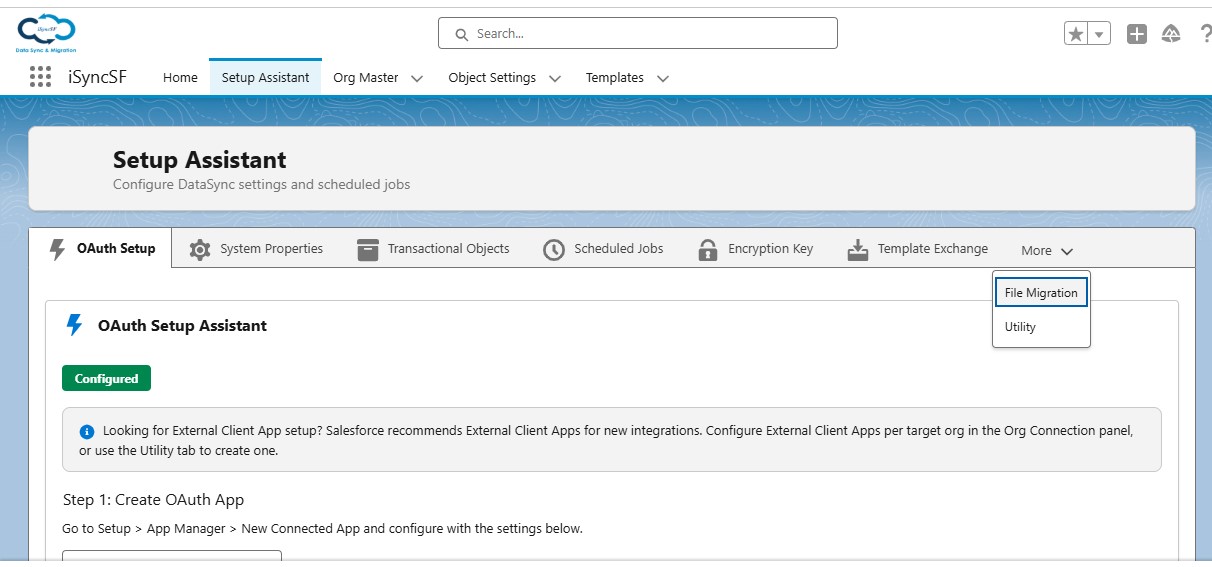
The Setup Assistant is a guided wizard that consolidates all post-install configuration into a single tabbed interface. It is the first place an administrator should go after installing the package.
What Users Can Do:
The Setup Assistant is organized into the following tabs:
Tab 1: OAuth Setup
Configure the Connected App credentials (Client ID, Client Secret, Callback URL) needed for connecting to target orgs.
Tab 2: System Properties
View and edit application-wide settings that control sync behavior. Grouped into accordion sections:
Feature Toggles
- Delete Temporary Files - Auto-cleanup of temporary processing files
- Enable Sharing Object Sync - When enabled, sync includes
__Sharerecords so that record-level sharing rules are replicated to the target org - Cross Template Cache - Enable caching of record mappings across templates so that a record synced by one template is not re-matched when another template touches the same object
- Pre-Scan Sync Mode - Run the scan phase as a separate step before sync begins; useful for large templates where you want to validate scope before committing to sync
- Allow Recursive Child Objects - Permit the child object hierarchy to include the same object at multiple levels (e.g., Account → Contact → Account). Leave off unless you intentionally need this
- Smart Child Deselection - When a parent object is removed from scope, automatically deselect its children instead of leaving them orphaned in the configuration
- Enable Data Versioning - Toggle data versioning for rollback support. Required if you intend to use the Rollback feature
Performance Settings
- Max API Call Limit - Maximum daily API usage percentage (10-100) before jobs are paused. Default 90
- Object Cache Batch Size - Number of objects whose metadata is cached per batch during scan. Default 25. Lower if you hit heap limits on complex objects
- Abort Lead Time (ms) - How long (10,000-300,000 ms) a job waits for in-flight work to complete before force-aborting. Default 60,000
Logging & Debug
- Debug Level - Set logging verbosity (ERROR, DEBUG, FINEST)
- Report Developer Name - API name of a Salesforce report used for record counts in audit summaries
Person Account Settings
- Person Account Standard Fields - Comma-separated list of standard PersonAccount fields that should be treated as Contact-mapped fields during sync
Metadata Settings Viewer (read-only)
- Shows the current values of all DataSync custom metadata settings including API version, field security enforcement, text field scanning, callback class names, and remote site settings status
Advanced Properties
- Update Source External Record ID - After a successful sync, write the target record ID back to the source record (useful for bi-directional traceability)
- Custom Properties - Add name/value pairs for internal extension points or callback-class configuration
Tab 3: Transactional Objects
Define objects that should be skipped during sync (e.g., time-sensitive transactional data):
- Add individual objects by API name
- Bulk add multiple objects at once
- Remove objects from the skip list
Tab 4: Scheduled Jobs
Configure and manage all background maintenance jobs:
- Metadata Cache Refresh - Refreshes object relationship metadata cache (default: bi-weekly)
- OAuth Token Refresh - Refreshes expiring OAuth tokens (default: every hour)
- Sync Job Manager - Resumes paused sync jobs (default: every hour)
- Audit Log Cleanup - Deletes old audit logs (default: 90-day retention, daily at 2 AM)
- Application Log Cleanup - Deletes old app logs (default: 60-day retention, daily at 3 AM)
- Job Record Cleanup - Deletes old job records (default: 180-day retention, weekly Sunday 4 AM)
- Users can customize CRON schedules, retention periods, and batch sizes
- "Apply Recommended Settings" button to use defaults for all jobs
Tab 5: Encryption Key
Manage the AES-256 encryption key that secures OAuth tokens and sensitive stored data. The tab shows key status (configured/missing and last modified date) and offers two actions:
- Rotate Encryption Key - Auto-generates a new 256-bit key and re-encrypts all stored tokens and client secrets in a single transaction
- Apply Custom Key - Paste a Base64-encoded 32-byte key you manage externally
Where It Is Used:
- When you connect your first target org, the access token and refresh token are encrypted with this key before being saved to
OrgMaster__c.AccessToken__candRefreshToken__c - Client secrets configured for External Client Apps are encrypted in
OAuthSecrets__c.ClientSecret__c - The OAuth token refresh scheduled job decrypts the refresh token, obtains a new access token, and re-encrypts both before saving
Example Use Cases:
- Quarterly rotation - Rotate the key every 90 days as part of routine security hygiene. Existing connections continue to work without re-authentication because tokens are re-encrypted in the same transaction
- Incident response - Rotate immediately if an org backup was shared externally, a developer sandbox was cloned publicly, or a former admin had elevated access
- Customer-managed keys (BYOK) - Paste your own Base64 key when compliance programs (HIPAA, FedRAMP, internal audit) require that you — not Salesforce-generated randomness — own the key material
- Post-audit remediation - After a penetration test or compliance finding, apply a fresh externally-generated key to demonstrate control over cryptographic material
Tab 6: Template Migration & Exchange
Export sync templates to JSON for backup or portability, and import them into another org. The exported JSON package contains the template, its template lines, all related object settings, field mappings, picklist value mappings, and data masking rules — a complete sync configuration in one file.
- Export - Search and pick templates; optionally include associated object settings; validate; then download a JSON file
- Import - Upload a previously exported JSON; validate format; preview what will be created, updated, or skipped; then commit. Supports create, merge (reuse existing), and skip actions per record
Example Use Cases:
- Dev → UAT → Prod promotion - Build and test a sync template in a Dev Sandbox, export the JSON, import into Full Sandbox for UAT, then into Production. No manual re-configuration of field mappings, picklist value translations, or masking rules
- Pre-change backup - Export a template before a risky edit (adding 30 field mappings, swapping the target object). If the change goes wrong, re-import to restore
- Consultant handoff - A consultant builds the configuration in a customer sandbox, exports the JSON, and sends the file. The customer imports into Production without needing consultant credentials
- MSP replication - Managed Service Providers with many similar customer orgs export once and import across all tenants, keeping mappings in lockstep
Tab 7: File Migration Service (feature-flagged)
Enable and configure an external streaming relay for large file transfers that would otherwise exceed Salesforce REST limits. Setup is a 3-step flow:
- Step 1: Connected App Setup - Checklist of OAuth app requirements with copy buttons for the callback URL and scopes
- Step 2: Service Configuration - Enter the File Migration Service URL and Tenant API Key
- Step 3: Register Connection - Provide source and target OAuth credentials so the relay can stream files between orgs. Registered connections appear in a table with Test and Delete actions
A global enable/disable toggle activates or deactivates the service, and a "How it works" section explains the file sync flow.
Example Use Cases:
- Large ContentVersion/Attachment sync - Files 5 MB or larger (PDF contracts, product photos, training videos) stream through the relay instead of failing with a Salesforce REST "Entity too large" error
- Org-to-org migration projects - Historical data loads where users have uploaded technical drawings, medical imaging, or engineering CAD files — standard REST would run out of heap
- Faster bulk transfers - The relay streams file chunks instead of base64-encoding the full file in a single callout — noticeably faster on multi-GB workloads
- Small-file workloads - If your syncs only touch records with attachments smaller than 5 MB, leave the tab disabled. Standard REST is simpler and needs no external service
Tab 8: Utility
Auto-deploys an External Client App (ECA) with OAuth pre-configured, using either Client Credentials (server-to-server) or Web Server (interactive) flow. The wizard walks through flow selection, app details, and one-click deployment, then lists remaining manual steps.
- Flow Type - Pick Client Credentials or Web Server; pros/cons cards explain the trade-offs
- Run-As Username (Client Credentials) - Integration user whose identity signs automated callouts
- Callback URL (Web Server) - OAuth redirect URI
- App Label - Name for the External Client App in Salesforce Setup
- Create App - Deploys the ECA metadata, OAuth settings, and global policies
- Manual Steps Card - Guides the admin through post-deploy tasks (approve Permitted Users, configure IP restrictions)
Example Use Cases:
- Unattended scheduled syncs - Deploy with Client Credentials flow + a dedicated integration user so sync jobs run overnight without a user session
- Interactive admin setup - Deploy with Web Server flow when first-time connections require an admin to log in and authorize in a browser
- Skip manual setup - Salesforce's built-in External Client App creation requires navigating several screens and pasting XML. The wizard does it in one click
- Standardize across environments - Deploy the same app name, scopes, and policies in Dev, Sandbox, and Prod so OAuth behaves identically across your promotion chain
- Downstream usage - After deployment and Permitted Users approval, the app becomes selectable in Org Connection via Authenticate via Mode = "Client Credentials - External Client App"
#1.2 Post-Install Automatic Setup
On fresh installation, the system automatically: - Seeds default system properties - Creates default object settings - Creates sample templates - Generates encryption keys (AES-256) for secure token storage - Schedules the metadata cache refresh job
#Post-Install Automatic Setup
When iSyncSF is first installed, the Post Install Manager automatically creates default System Property records, schedules essential background jobs, and configures the default custom metadata values. You can review and modify these defaults in the Setup Assistant. If any auto-created records are accidentally deleted, re-running the Setup Assistant will recreate them.